OBS MULTICHAT / DUSHAT PRO

Three chats. One OBS source.

Bring Twitch, YouTube and Kick messages into the same overlay. Viewers can see where each message came from, while you manage one chat design and one OBS link.

Included in Dushat PRO. View the examples here without signing in.

DUSHAT / IN ACTION

Follow the conversation across platforms

Add sample messages from Twitch, YouTube and Kick. Switch between Neon City and Tokyo Pop, pause the feed or try a light background. The demo uses the actual widget’s captured appearance.

ONE CHAT FEEDNEON CITY
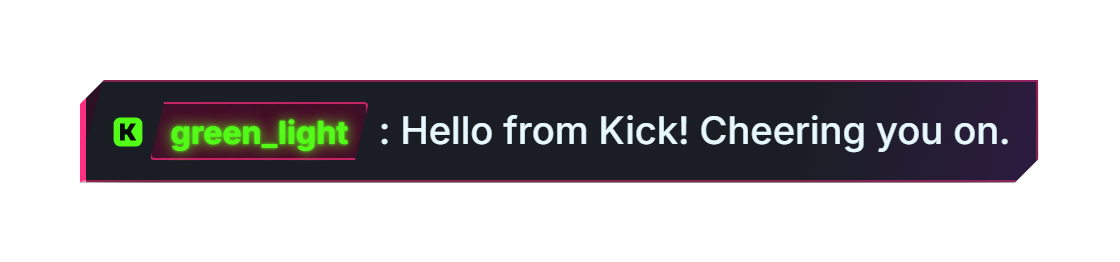
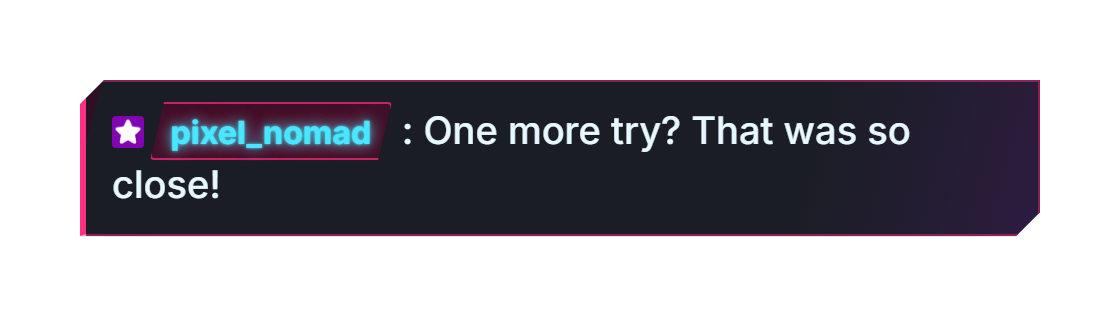
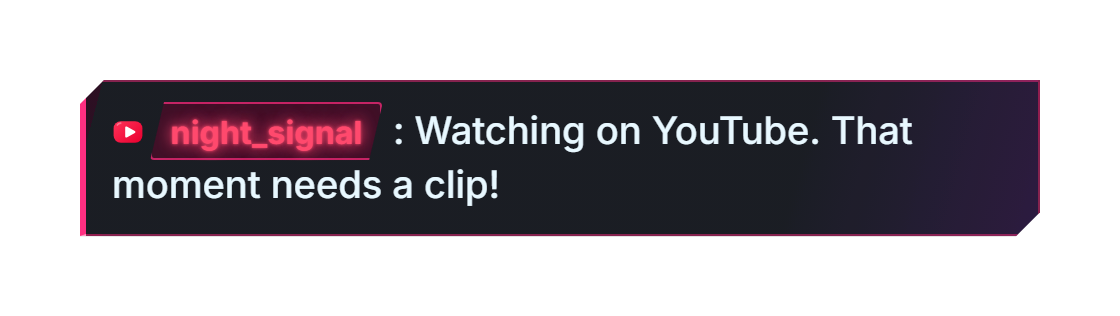
twitch, pixel_nomad: One more try? That was so close!youtube, night_signal: Watching on YouTube. That moment needs a clip!kick, green_light: Hello from Kick! Cheering you on.
Sample messages
THE WORKFLOW

What viewers see from each platform

Twitch: chat and channel activity

Twitch is the main chat source for the broadcaster account you use to sign in. Messages can include native and supported 7TV emotes, badges, replies and channel point rewards. Use the style editor to decide which elements to display.

YouTube: messages and Super Chat

Authorize your YouTube channel, then connect its active broadcast. The same overlay shows YouTube messages, Super Chat and a moderator indicator. The YouTube icon distinguishes those viewers from the Twitch conversation.

Kick: messages, replies and emotes

Connect your Kick channel to add its messages to the feed. Kick replies and native emotes are supported; a compact Kick icon identifies the platform. Kick role badges are not displayed.
SETUP GUIDE

Connect your channels, then add OBS

Explore PRO access
  1. 01

    Start with your Twitch account

    Sign in to Dushat with the broadcaster account, activate PRO and open the PRO constructor. Switch to Multichat to manage additional sources.

  2. 02

    Connect YouTube and Kick

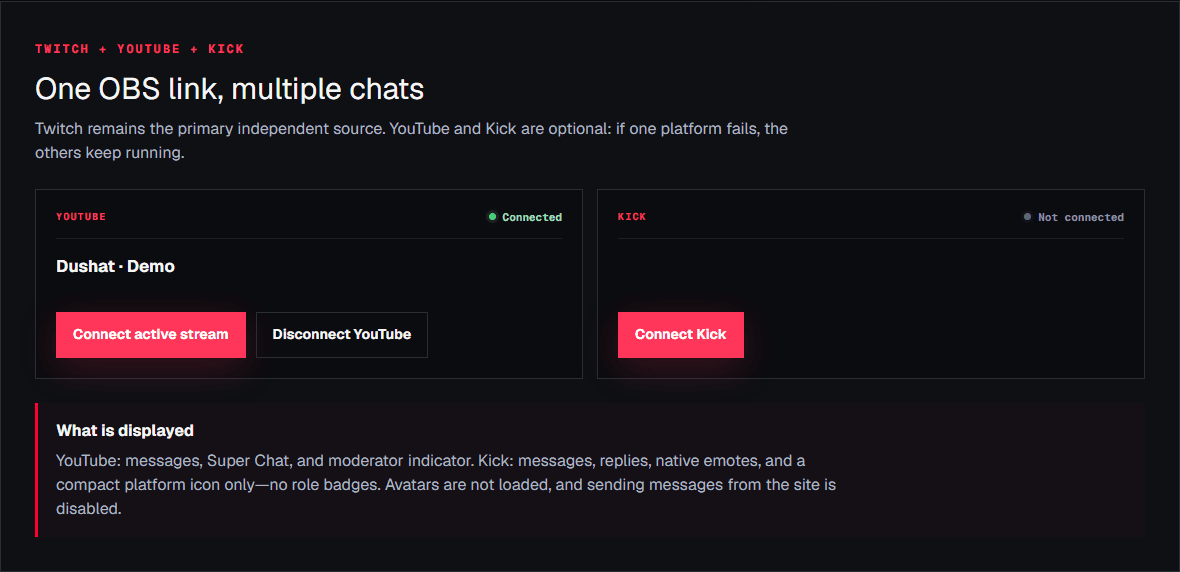
    Use Connect YouTube, authorize the channel, then choose Connect active stream when your broadcast is live. For Kick, use Connect Kick and check the connected channel and enabled status.

  3. 03

    Publish your chat style

    Return to the style editor, choose your appearance, save the style and publish it. Copy its personal OBS URL; the same source receives messages from your connected platforms.

  4. 04

    Add a Browser Source in OBS

    In Sources, choose + → Browser and paste the URL. Set the source dimensions to the chat area you want, then position it in your scene. Send a real message on each connected platform to check the result.

Multichat settings: an authorized demo YouTube channel with Connect active stream, plus Connect Kick
The Multichat tab in the PRO constructor. In this example, YouTube is authorized: Connect active stream attaches its live chat. Kick can be connected separately.

If one chat is missing

What you seeWhat to check
No YouTube messagesMake sure the connected channel has an active broadcast with live chat. Use Connect active stream again after starting a new broadcast.
No Kick messagesCheck that Kick is connected to the intended channel and enabled. Reconnect that source if its status reports an error.
No messages from any platformCheck the published OBS URL and active PRO access. Send new messages: an empty chat does not necessarily mean the source is disconnected.
FAQ

Questions that come up in practice

Do I need three OBS sources?

No. The published Dushat URL combines the connected chats into one Browser Source. Keep your other chat sources only if you also want separate overlays.

Can I use only Twitch and YouTube?

Yes. YouTube and Kick are optional connections. You do not need to enable all platforms to use the overlay.

Is multichat included in the free constructor?

Multichat requires Dushat PRO. The free constructor exports CSS for an existing Twitch or StreamElements chat; it does not combine platform feeds.